How to use the Screen recorder feature
Modified on: Fri, 27 Nov, 2026 at 1:37 PM
If you would like to record a game which is not supported by Overwolf, or just record your computer screen, you can use the Outplayed Screen recorder feature!
Please note that this feature can only be set to record manually and can not record automatic highlights & display game events.
Take me to...
How to use the Screen recorder feature
You can start the screen recording by either:
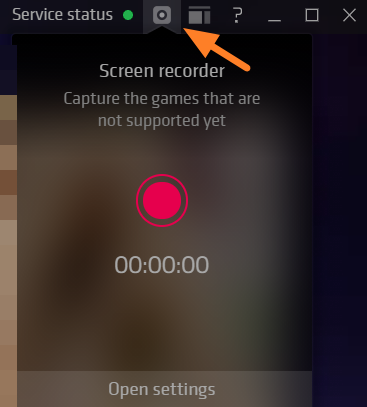
- Clicking on the Screen recorder option in the top bar then clicking on the big red button to start the recording:
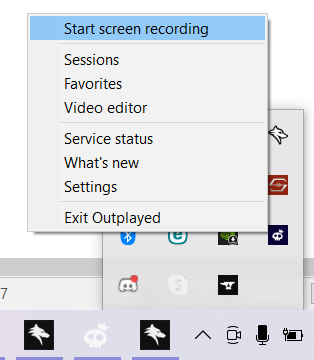
- Right clicking on the Outplayed tray icon and clicking "Start screen recording"
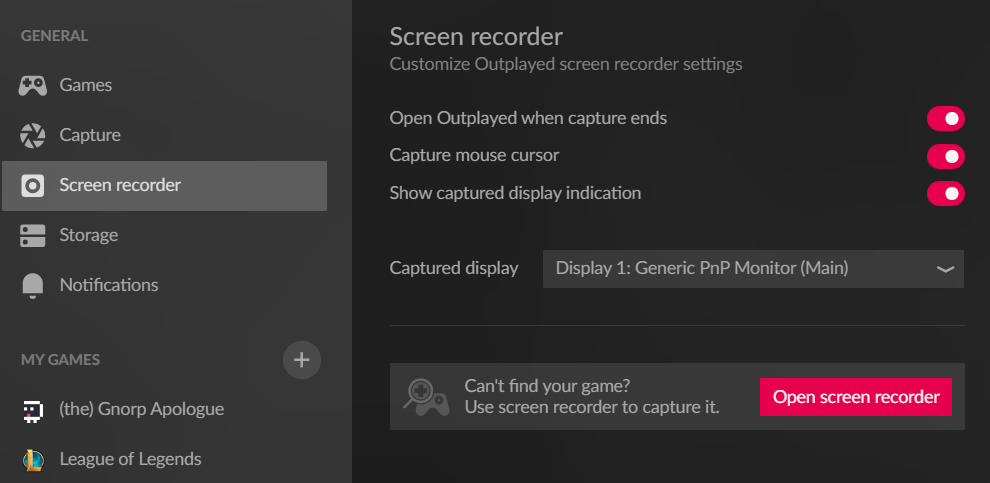
- Going to the Outplayed Settings, clicking on Screen recorder and "Open screen record":
Please note that the recording will not end automatically when closing Outplayed- you can only end the recording manually.
Longer recordings may take a longer time to process. Please make sure to leave Outplayed open until the recording has been completely processed, closing Outplayed before the recording has finished processing may corrupt the file.
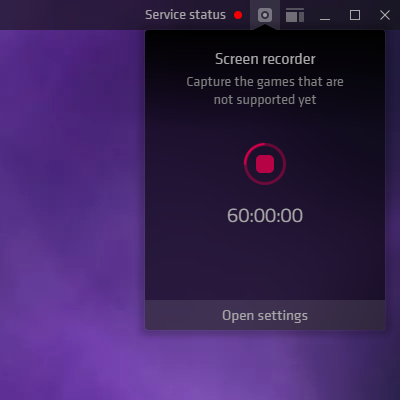
We are working on creating a hotkey to allow you to open the Screen Recorder faster!
Note: The Screen recorder will record EVERYTHING on the screen so make sure to hide any sensitive information.
FAQ
Screen Recorder is showing that there is already a recording in process
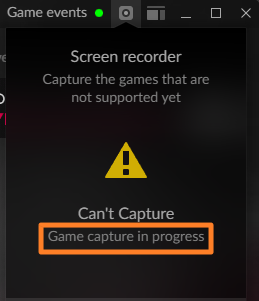
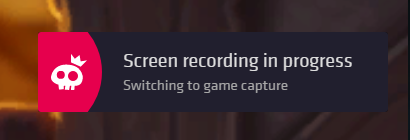
If you start manually recording your screen and switch to a supported game Outplayed will stop the Screen recorder and automatically capture the gameplay with your chosen game capture mode settings.
If you would like to only use the Screen recorder to manually record your game please manually disable your game from being recorded.
Changing the Screen recorder settings
If you have more then one monitor you can use the Screen recorder settings to set which display will be captured:
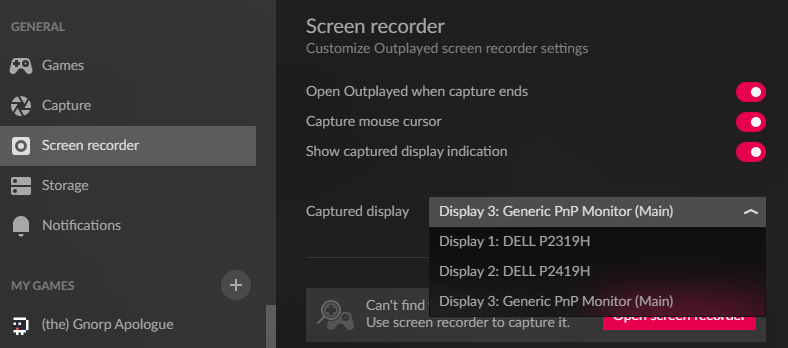
Please make sure to restart Outplayed & your game to save any changes to the settings.