
Overwolf & Windows Insider Versions
Due to technical limitations, Overwolf no longer supports Windows Insider builds.
Starting February 14th, 2021, the Overwolf overlay will not function on systems running a Windows Insider version of Windows.
Overwolf supports public, stable Windows releases only so we can ensure a consistent, secure, and high-quality experience for all users.
Windows Insider versions are pre-release test builds, which means they may include bugs or system changes that break compatibility with Overwolf. Because of this, we can't guarantee proper functionality on Insider builds.
Take me to...
- How to Check If You're Using a Windows Insider Build
- Override (Advanced- Not Recommended)
- Installing Overwolf (Override Method)
- Overwolf Already Installed (Override Method)
How to Check If You're Using a Windows Insider Build
Open Windows Settings
Type “Windows Insider” into the search bar
Click the search result
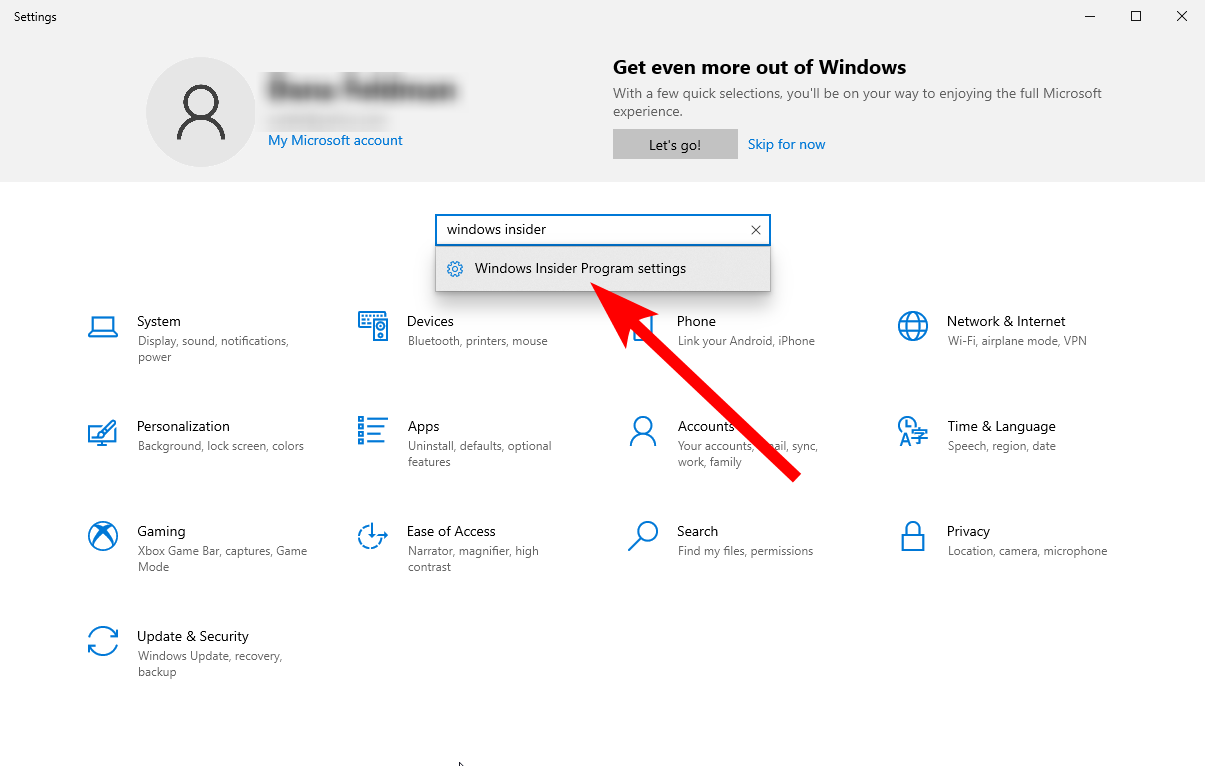
You will see one of the following screens:
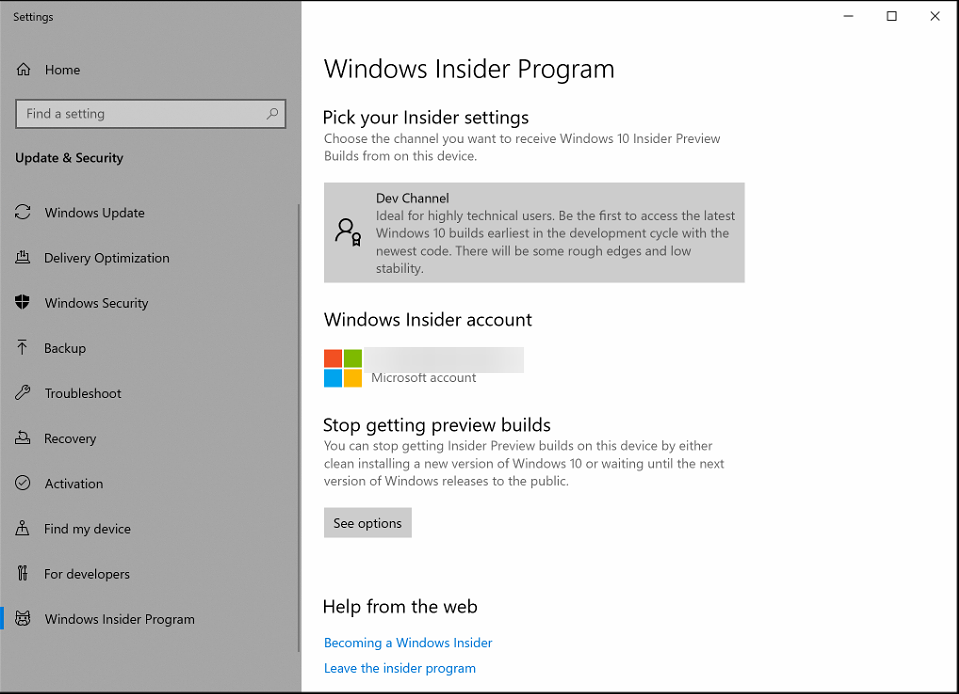
If you ARE in the Insider Program:
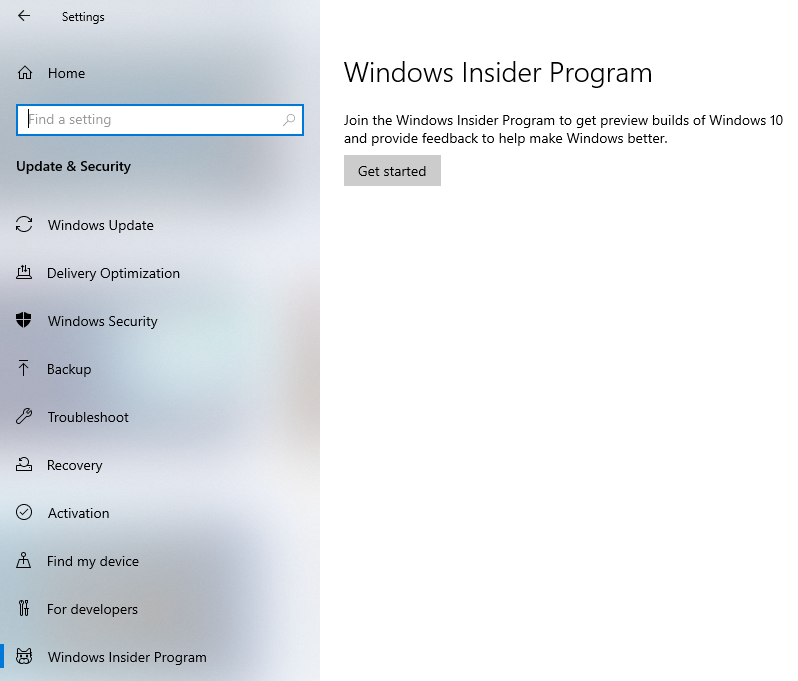
If you are NOT in the Insider Program:
Override (Advanced- Not Recommended)
⚠️ Important Warning
We strongly advise against using the override, especially for Call of Duty: Warzone or Black Ops Cold War.
We cannot guarantee the safety of your game account if you choose to proceed.
If you still want to use Overwolf with a Windows Insider version, you can apply one of the override methods below, depending on whether you are installing Overwolf for the first time or already have it installed.
Installing Overwolf (Override Method)
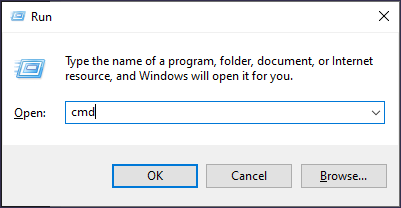
Open Command Prompt (search for cmd, or press Win+R, type cmd, and click OK).
Download the Overwolf setup installer here.
Open the folder where the installer was downloaded.
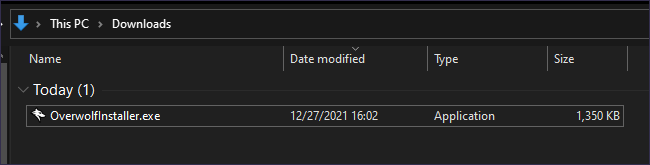
Drag the installer file into the Command Prompt window.

- Press Space, then type:
-AllowWindowsInsider
Press Enter.
The installer will now launch with the override enabled.
Overwolf Already Installed (Override Method)
Close Overwolf completely.
Open the following directory:
(Or paste %ProgramData%\Overwolf\Setup into the File Explorer address bar.)
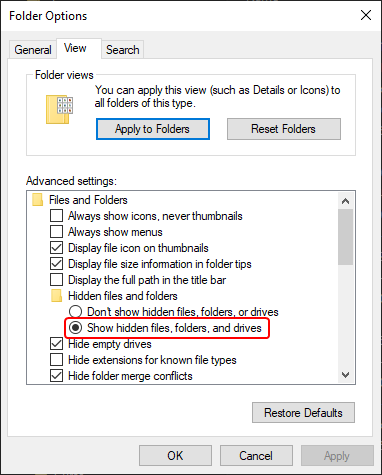
If you don’t see the ProgramData folder, enable View hidden files and folders.
(Windows 11: Click the three dots in File Explorer → Options.)Find SetupInfo.ini.
Right-click → Edit.
Under the [General] section, add this line on a new row:
It should look like this:
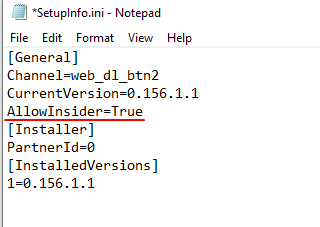
Save the file and restart Overwolf.
If You Cannot Edit or Save SetupInfo.ini
Try one of the following:
Option A. Run Notepad as Administrator
Open Notepad as admin
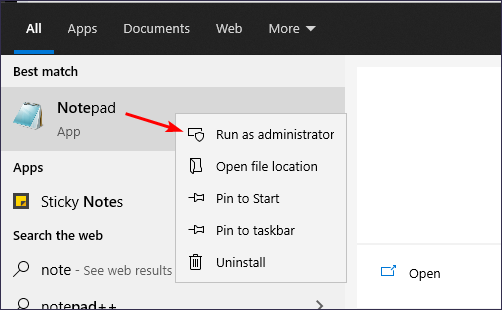
Go to File → Open
Navigate to:
Change file type to All Files
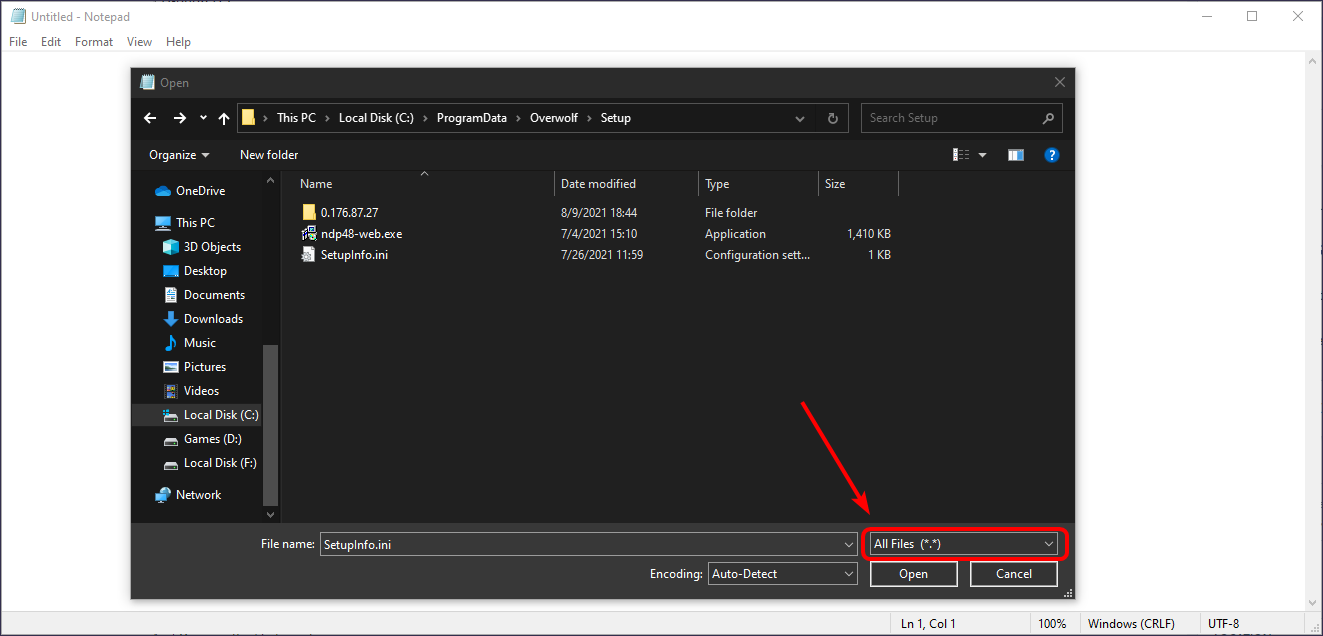
Open SetupInfo.ini
Add:
Save the file
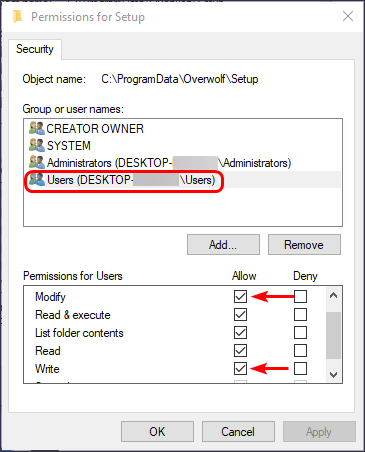
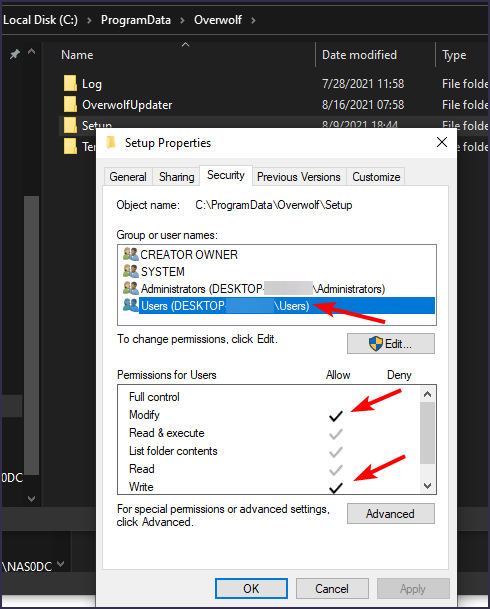
Option B. Adjust Folder Permissions
Right-click the Setup folder
Select Properties → Security → Edit
Enable Modify and Write permissions for your user
Click Apply → OK
If you still experience issues or have questions, please open a Support ticket.
Due to technical issues Overwolf is no longer supported on Windows Insider versions. This means that Overwolf's overlay will not work on systems running Windows Insider OS from the 14th of February 2021.
Overwolf supports public Windows versions only, in order to provide a stable and secure experience for our users.
Windows Insider versions are considered pre-release builds that are meant for testing, and as such, we cannot guarantee the same level of user experience for these versions that we wish to maintain.
To check if you're running a Windows Insider version or not, please open your system's settings, type in 'Windows Insider' and click on the search result:
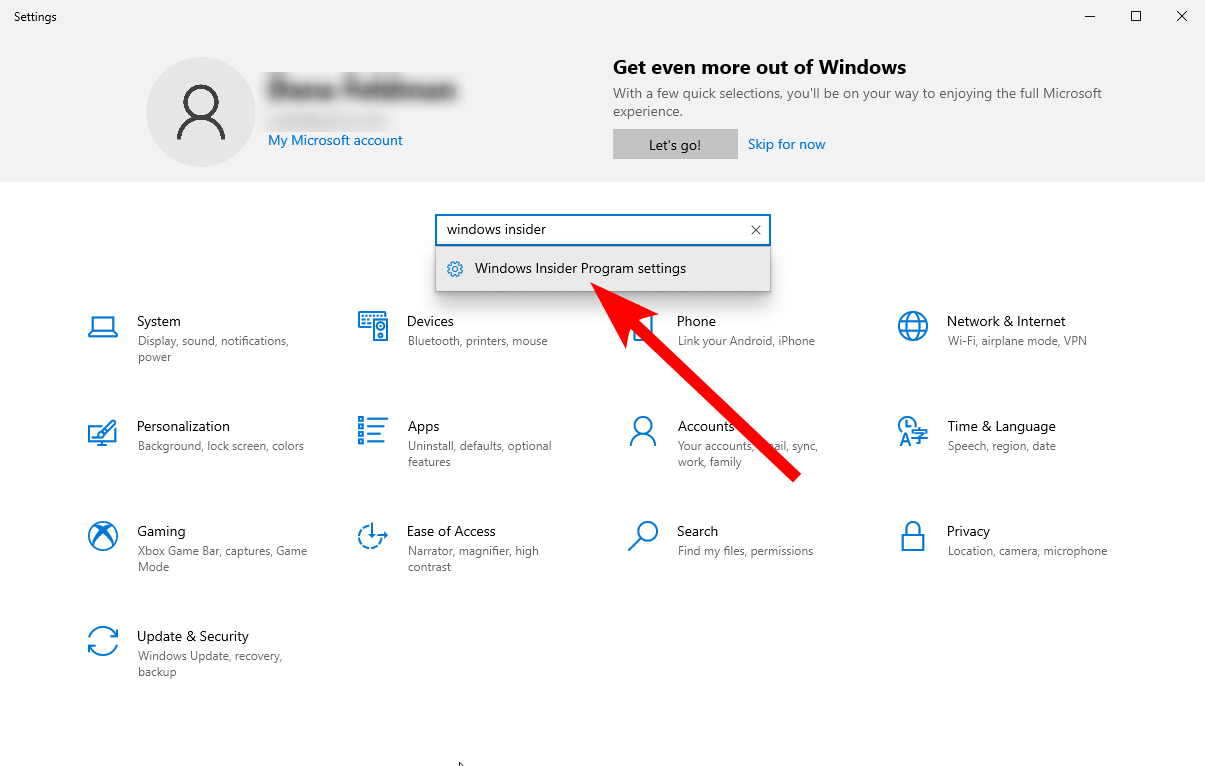
This should take you to the Insider Program settings where you will see this screen if you are in the program:

Or this screen if you are not in the program:

Override
We strongly advise against using the override to access apps specifically for Call of Duty: Warzone / Black Ops Cold War, and cannot guarantee the safety of your game account if you decide to go forth and apply it.
If you are absolutely certain you wish to use Overwolf with Windows Insider, you can use the following override methods, depending on whether you're installing Overwolf for the first time, or already have Overwolf installed:
Installation
To install Overwolf using the override, follow these steps:
- Open the Command Prompt by searching the system for 'cmd', or pressing Win+R, typing 'cmd' and clicking 'OK':

- You can download the again Overwolf setup installer again Here.
- Open the folder where the Overwolf installer was downloaded to, for example:

- Drag the installer file from the folder into the Command Prompt window you opened in step 1:
- Hit 'Space' and then type in -AllowWindowsInsider (you can copy and paste it instead of typing):
- Hit 'Enter', and the installer should start running with the override.
Overwolf Already Installed
Follow these steps to override Overwolf if it's already installed on your system:
- Close Overwolf (if running)
- Open the following directory: C:\ProgramData\Overwolf\Setup (%ProgramData%\Overwolf\Setup)
If you cannot locate the ProgramData folder, please make sure to enable the View hidden files and folders option (in Windows 11, click the 3 dots at the top menu and select 'Options'):

- Locate the file called 'SetupInfo.ini'
- Right click the file and choose 'Edit'
- Under '[General]' start a new line and type in
AllowInsider=True, so the result would look like this:
- Restart Overwolf
If you're having trouble editing or saving the file, please try the following:
- Run Notepad as an administrator:

Open the file from in it (File > Open... > C:\ProgramData\Overwolf\Setup, make sure to set the file type to 'All Files'):
- Add Write/Modify permissions to your Windows user for the C:\ProgramData\Overwolf\Setup folder (right click the folder > Properties > Security > Edit > check 'Modify' and 'Write' > Apply > OK):

