If your system recommends a DPI setting higher than 100% (common on 4K monitors), you may notice the in-game overlay displaying incorrectly.
Setting your DPI to 100% or adjusting Overwolf’s high DPI behavior will resolve most display issues caused by DPI scaling.
Take me to...
Adjust Overwolf's High DPI Settings
Open your Overwolf installation folder
(default location:C:\Program Files (x86)\Overwolf)Right-click Overwolf.exe and select Properties.
Go to the Compatibility tab.
Click Change high DPI settings.
Check Override high DPI scaling behavior.
For Scaling performed by, select System (Enhanced)
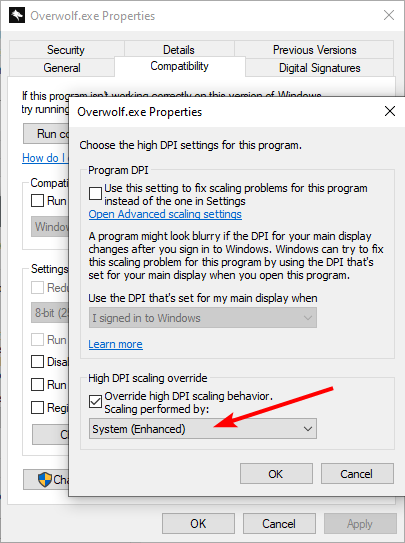
Make sure to fully relaunch Overwolf to apply the changes.
Lower Your System DPI to 100%
If your monitor’s native resolution is not 4K, you can also scale your DPI back down to 100% to resolve overlay issues.
Windows 11
Press Windows Key + R.
Type:
DpiScaling.exeSelect 100% from the dropdown.
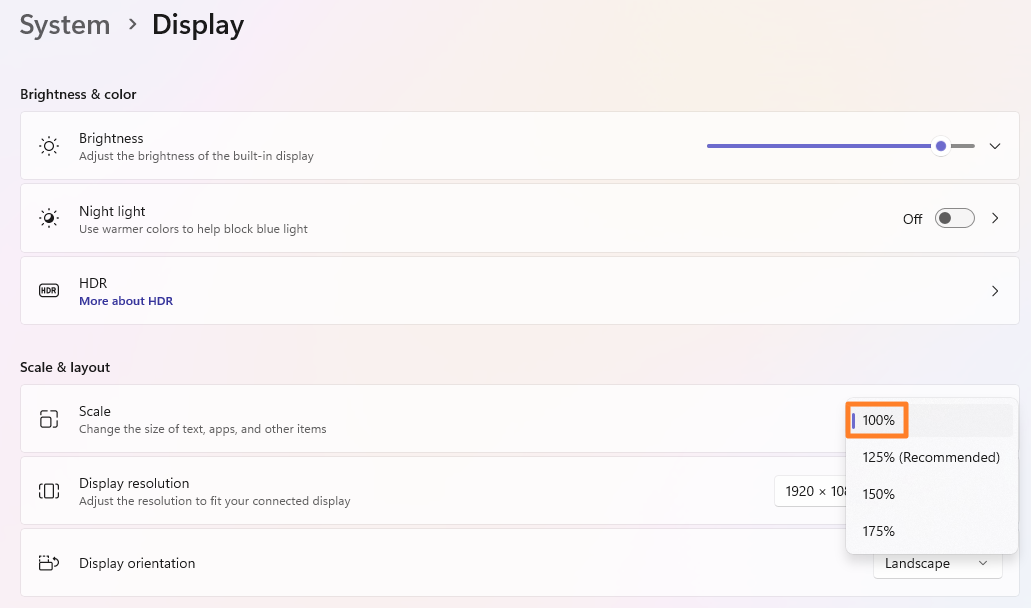
Sign out and back in to your Windows account to apply changes.
Windows 10
Press Windows Key + R.
Type:
DpiScaling.exeDrag the slider to 100%.
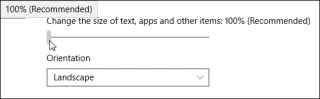
Click Apply.
Sign out and back in to your Windows account.
Cropped/Cut-Off App Window
If your Overwolf apps appear cut off, misaligned, or displayed incorrectly (as shown below), and you’ve already tried the recommended high DPI fixes, the issue may be caused by your system’s text size settings.
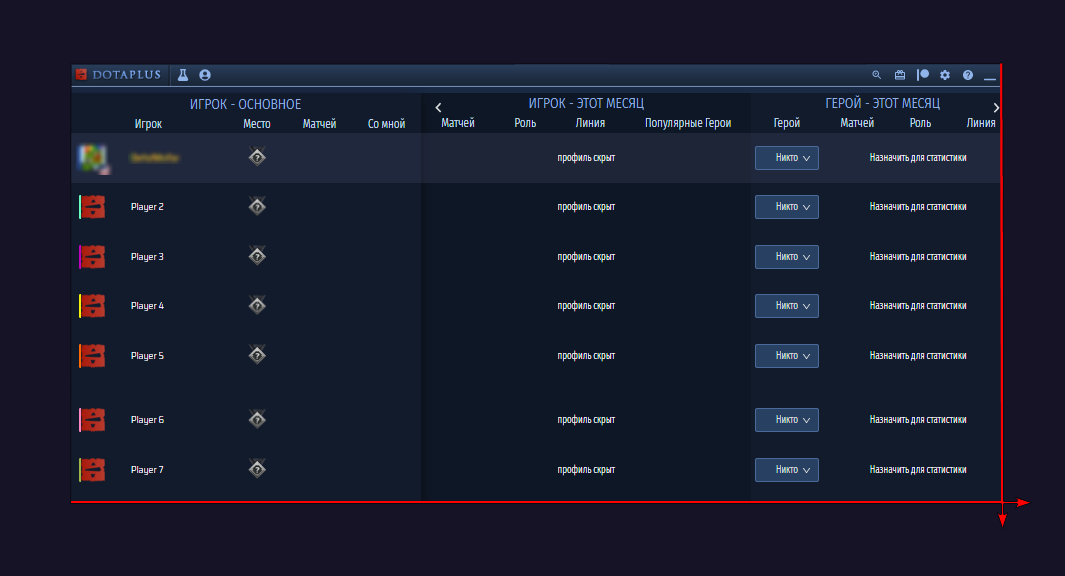
To resolve this, check your Windows text size setting:
Open your system’s Display Settings
Locate the Text Size option
Make sure it is set to 100% or lower
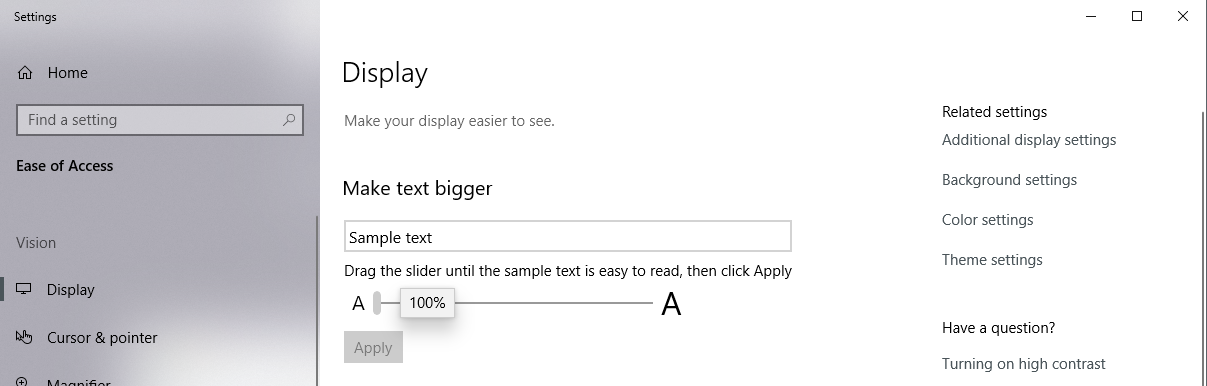
If you adjust the text size, be sure to log out of Windows or restart your PC to save the changes.